Upgrade PostgreSQL using Azure Cloud Shell.
Date created: May 27, 2026.
Introduction.
Azure Database for PostgreSQL Flexible Server supports in-place major version
upgrades, which makes it possible to move a server to a newer PostgreSQL major
version without changing the server name or application connection string.
Microsoft documents that this process uses PostgreSQL pg_upgrade, runs prechecks,
and can upgrade directly to a later supported version.
In this article, I will show how I upgraded an Azure Database for PostgreSQL
Flexible Server from PostgreSQL 13.22 to PostgreSQL 17 using Azure Cloud Shell
and the Azure CLI. The server used in this example is named morillo, is located
in Canada Central, has High Availability enabled, and uses the endpoint:
morillo.postgres.database.azure.com
This is a simple lab example, but the same approach can be used for real
environments after proper testing and planning.
Why use Azure Cloud Shell?
Azure Cloud Shell is very convenient for this type of task because there is
nothing to install locally. It gives you a browser-based, authenticated
command-line environment from the Azure Portal, and it supports both Bash and
PowerShell.
For this example, I used Cloud Shell directly from the Azure Portal. The prompt
in my session was PowerShell, but the Azure CLI command works the same way when
entered as a single line in either PowerShell or Bash.
One important point for my lab is that the server had High Availability
enabled. During an in-place major version upgrade, Azure temporarily disables
HA, upgrades the primary server, and then re-enables HA after the upgrade
completes.
Before starting the upgrade
A PostgreSQL major version upgrade should always be treated as a planned
maintenance activity. Microsoft notes that a major version upgrade is
irreversible after it succeeds, and recommends testing the upgrade first on a
restored non-production copy of the server.
Before upgrading a production server, I would recommend checking at least the
following items:
Azure also runs a precheck before the upgrade. If the precheck detects an
incompatibility, the upgrade is blocked and an error is logged. If the precheck
succeeds, the service stops the PostgreSQL server, takes an implicit backup,
performs the upgrade, and brings the server back online.
One important point for my lab is that the server had High Availability enabled.
During an in-place major version upgrade, Azure temporarily disables HA,
upgrades the primary server, and then re-enables HA after the upgrade completes.
Current server configuration.
The first thing I did was open the PostgreSQL Flexible Server resource in the
Azure Portal and review the current configuration.
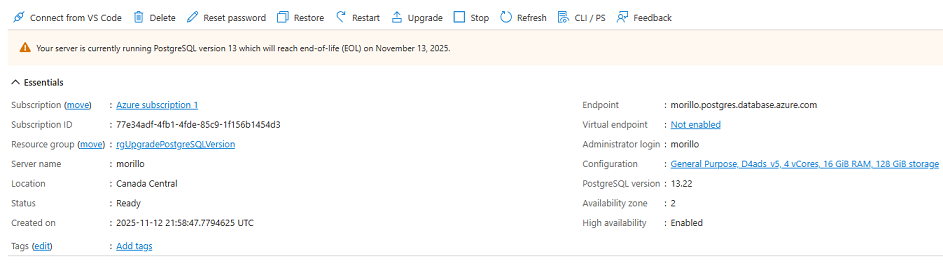
At this point, the server was online and ready. That is important because the
upgrade option is only available when the server is in a healthy state.
Running the upgrade from Azure Cloud Shell.
To start the upgrade, I opened Azure Cloud Shell from the Azure Portal and used
the Azure CLI command az postgres flexible-server upgrade.
Microsoft documents the command format as follows:
az postgres flexible-server upgrade \
--resource-group <resource_group> \
--name <server> \
--version <target_version>
For my server, the command was:
az postgres flexible-server upgrade --resource-group
rgUpgradePostgreSQLVersion --name morillo --version 17
Be careful with the --name parameter. It must be written as --name, without a
space between -- and name.

After confirming, the upgrade started and Cloud Shell showed the operation as
in progress.
Upgrade output.
When the command completed successfully, Azure CLI returned the server
properties in JSON format. In my case, the output was long enough that it took
two screenshots on my laptop.
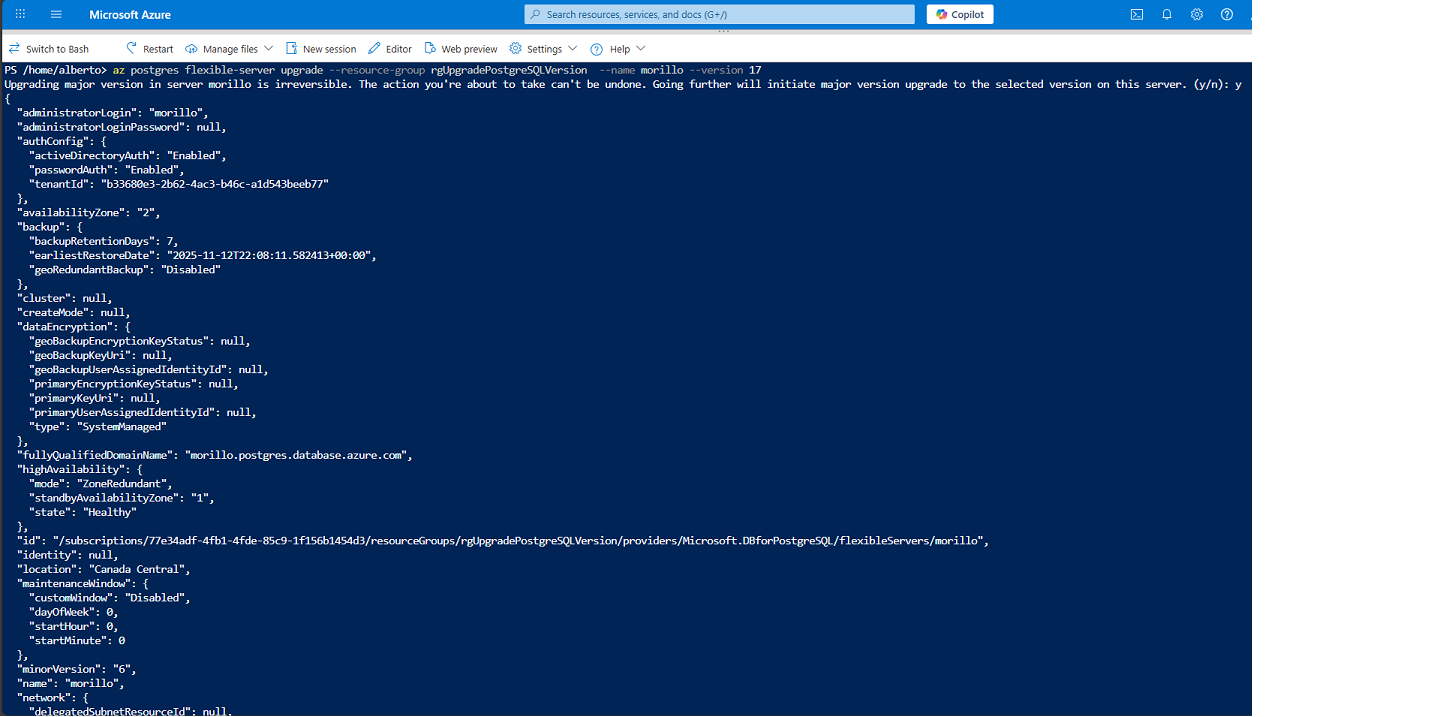
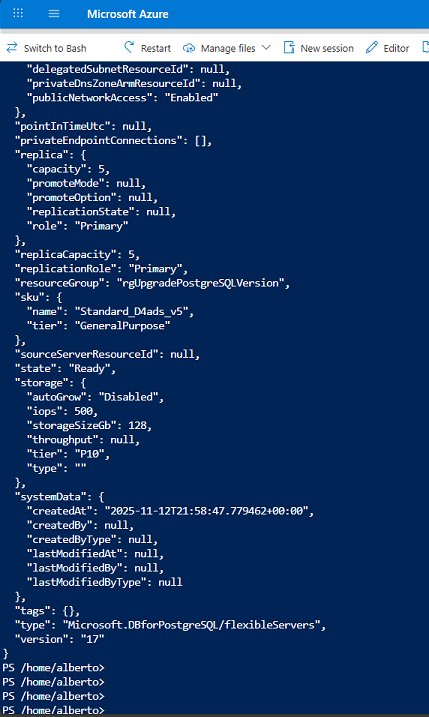
The most important values to verify in the output are the server state and
PostgreSQL version. In my output, the server returned to the Ready state and the
version changed to:
"version": "17"
Azure automatically deploys the latest supported minor version available for the
selected major version at the time of the upgrade.
Verifying the upgrade.
After the command completed, I verified the server from Azure CLI and from the
Azure Portal.
A quick Azure CLI validation command is:
az postgres flexible-server show --resource-group rgUpgradePostgreSQLVersion
--name morillo --query "{name:name,state:state,version:version,minorVersion:minorVersion,fullyQualifiedDomainName:fullyQualifiedDomainName}"
--output table
You can also return the full JSON output:
az postgres flexible-server show --resource-group rgUpgradePostgreSQLVersion
--name morillo --output json
At the database level, you can connect to PostgreSQL and run:
SELECT version();
This confirms the PostgreSQL engine version from inside the database.
Final thoughts.
The Azure CLI made this upgrade very straightforward. I did not have to install
anything on my laptop because Azure Cloud Shell already provided an
authenticated command-line environment. The server name and endpoint remained
the same, which is one of the main advantages of an in-place major version
upgrade.
For a lab or test server, the process is simple. For production, I would be more
careful: restore a copy of the server, test the upgrade, validate extensions and
application behavior, and schedule a maintenance window. PostgreSQL major
upgrades can introduce behavior changes, so the technical command is only one
part of the process.
In this example, the server morillo was upgraded from PostgreSQL 13.22 to
PostgreSQL 17 using this command:
az postgres flexible-server upgrade --resource-group
rgUpgradePostgreSQLVersion --name morillo --version 17
The upgrade completed successfully, and the Azure CLI output confirmed that the
server was running PostgreSQL version 17.
![[Company Logo Image]](images/SQLCofee.jpg)