Msg 547 - Statement conflicted with the CHECK constraint.
Applies to: Azure SQL Database, Microsoft SQL Server (any version)
Date created: October 20, 2026.
Problem Description.
While inserting a student record into the dbo.Students table in the University
database, I received an error indicating that the INSERT statement conflicted
with a CHECK constraint.
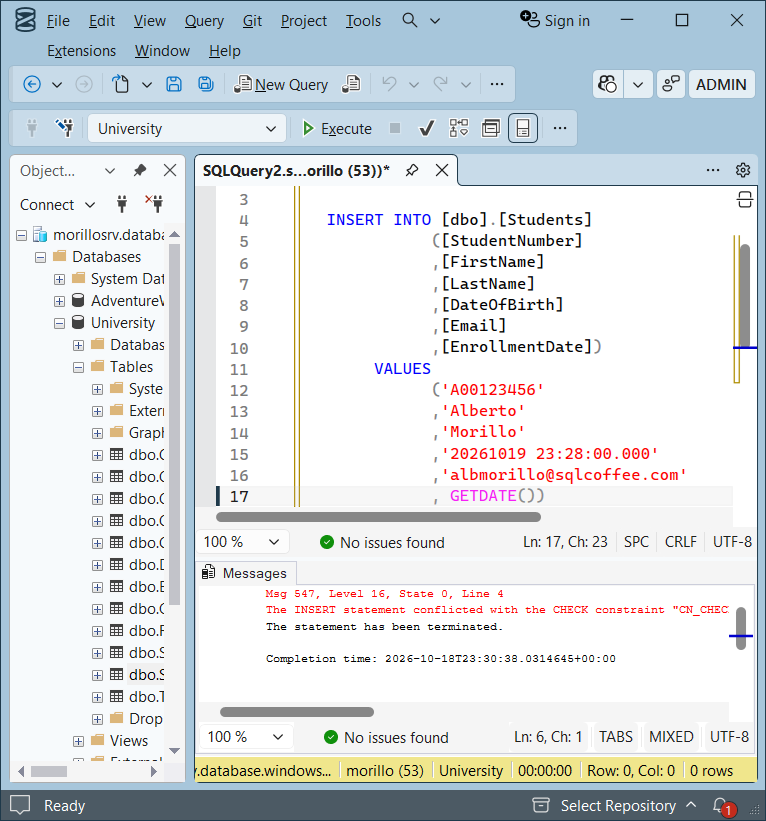
The following statement was used to reproduce the error:
INSERT INTO dbo.Students

(StudentNumber, FirstName, LastName,

DateOfBirth, Email, EnrollmentDate)

VALUES

('A00123456', 'Alberto', 'Morillo',

'20261019 23:28:00.000',

'albmorillo@sqlcoffee.com', GETDATE());
SQL Server returned the following message:
Msg 547, Level 16, State 0, Line 4
The INSERT statement conflicted with the CHECK constraint "CN_CHECK_TODAYS_DATE".
The conflict occurred in database "University", table "dbo.Students", column 'DateOfBirth'.
The statement has been terminated.
Cause.
A CHECK constraint restricts the values that can be stored in a table. When an
INSERT supplies a value that makes the constraint's condition evaluate to FALSE,
SQL Server rejects the row.
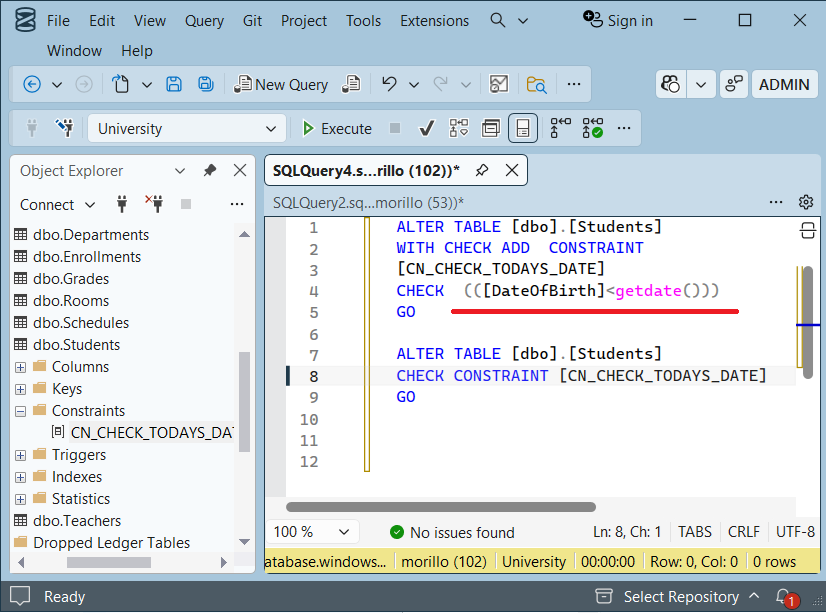
In this case, the CN_CHECK_TODAYS_DATE constraint contains the following
expression:
CHECK ([DateOfBirth] < GETDATE())
This rule requires the supplied date of birth to be earlier than the current
database date and time. The test was performed on October 18, 2026, but the
INSERT supplied October 19, 2026, at 23:28. Because that value was in the future
when the statement ran, it violated the constraint.
GETDATE() includes both the date and time. In Azure SQL Database, it uses UTC.
Solution.
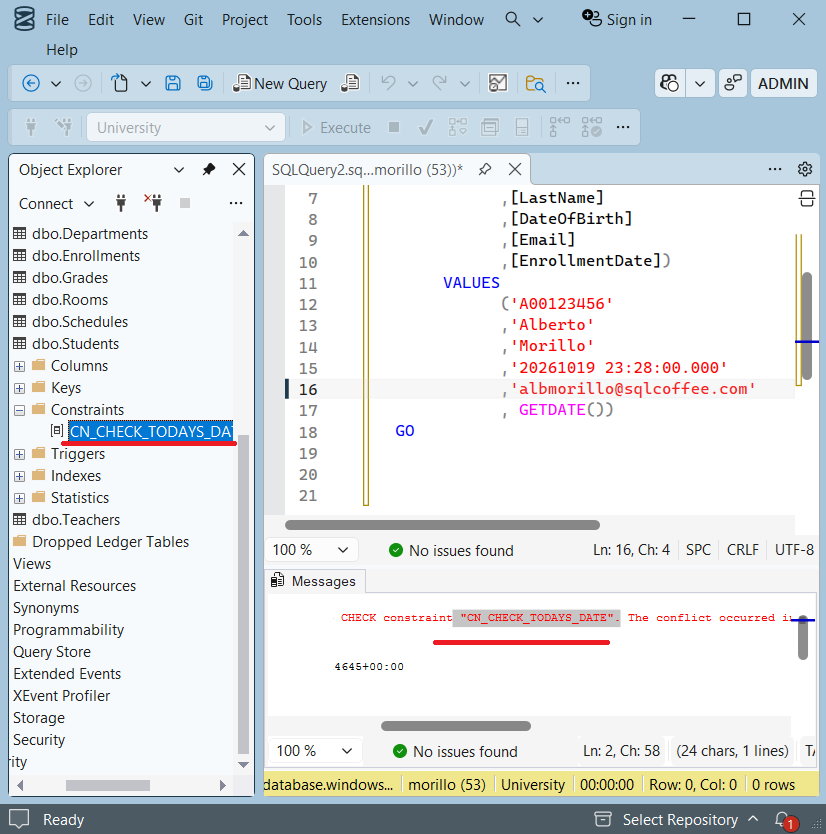
Start with the constraint name provided in the error message and inspect its
definition in SQL Server Management Studio (SSMS):
1. In Object Explorer, expand Databases > University > Tables > dbo.Students.
2. Expand Constraints and locate CN_CHECK_TODAYS_DATE.
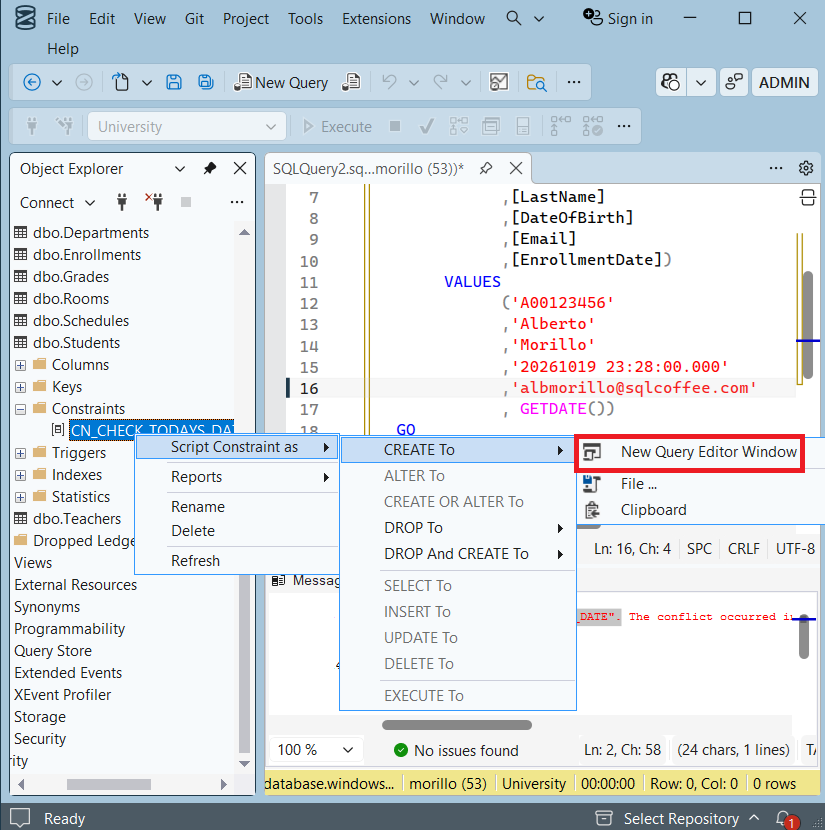
3. Right-click the constraint and select Script Constraint as > CREATE To > New
Query Editor Window.
4. Review the CHECK expression in the generated script to identify the condition
that the inserted value must satisfy.
The generated script displays the existing constraint's definition; you only
need to read it to understand the rule.
Once the rule is clear, correct the DateOfBirth value in the INSERT statement.
For example, the following statement uses January 15, 2000, as an illustrative
birth date:
![[Company Logo Image]](images/SQLCofee.jpg)